Features
The platform includes the following features:
- Administration Panel
- User Management
- Samples Management
- Report Generator
- Settings Panel
- Notifications
- Metrics Dashboard
Administration Panel
The platform features an administration panel that allows admins to manage various aspects of the application. For example, they can use the panel to add new users or manage existing ones. Additionally, they can use the panel to add new tests, methods, templates, or patients, or to manage existing ones.
This option is only available to users with the “Admin” role.
Tests
A test is a procedure performed on a sample to determine the presence or quantity of a particular substance.
- Every test includes methods as steps, and users can define whether each step is required or optional.
- Tests can be created as single tests or panel tests, with a panel test including many single tests.
- A test can be active or inactive. Inactive tests will not be available to users when they create a new sample.
- Administrators can create, edit, and delete tests, while technicians can only create and edit them.
- Test records are displayed in a grid view nested within the administration section.
Methods
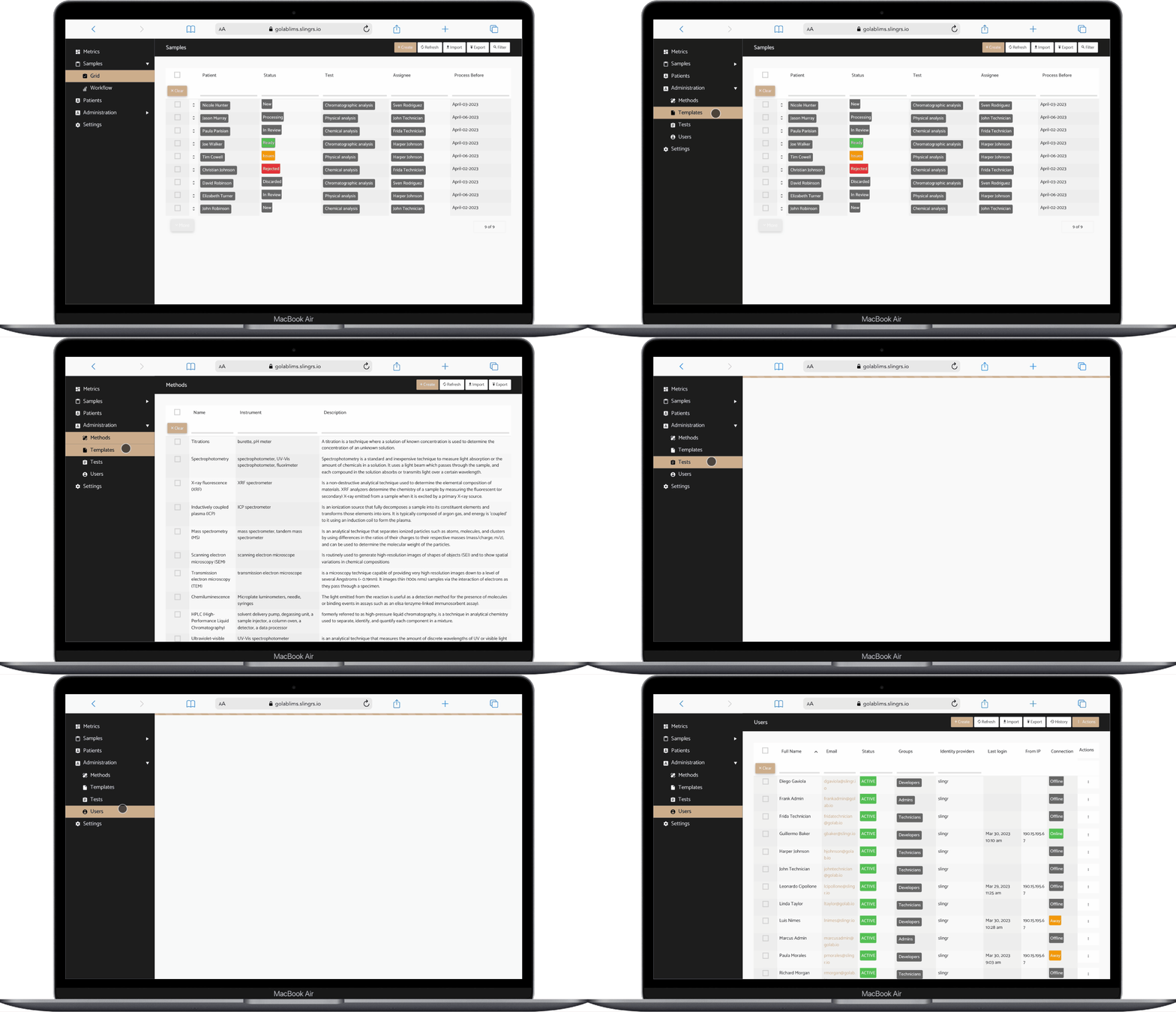
Methods are specific procedures used to carry out tests. For example, a physical analysis may involve many methods, such as spectrophotometry, x-ray fluorescence, or titrations.
The platform uses a grid view to display the name, instrument used, and description of each method. From here, administrators can create, delete, and view the details of each method, but technicians do not have access to method records.
Templates
Templates are records that store information necessary to determine the format of reports generated automatically by the platform.
- The application uses a grid view to display the records.
- Template records include fields for name, format (PDF/CSV), and content.
- Admins can create, edit, and delete the details of each template, while technicians do not have access to template records.
- When a template is created, the platform will automatically generate a PDF report preview, which will be stored in the “Report Preview” field of the template. When an admin edits a template record, the PDF report preview is regenerated.
Patients
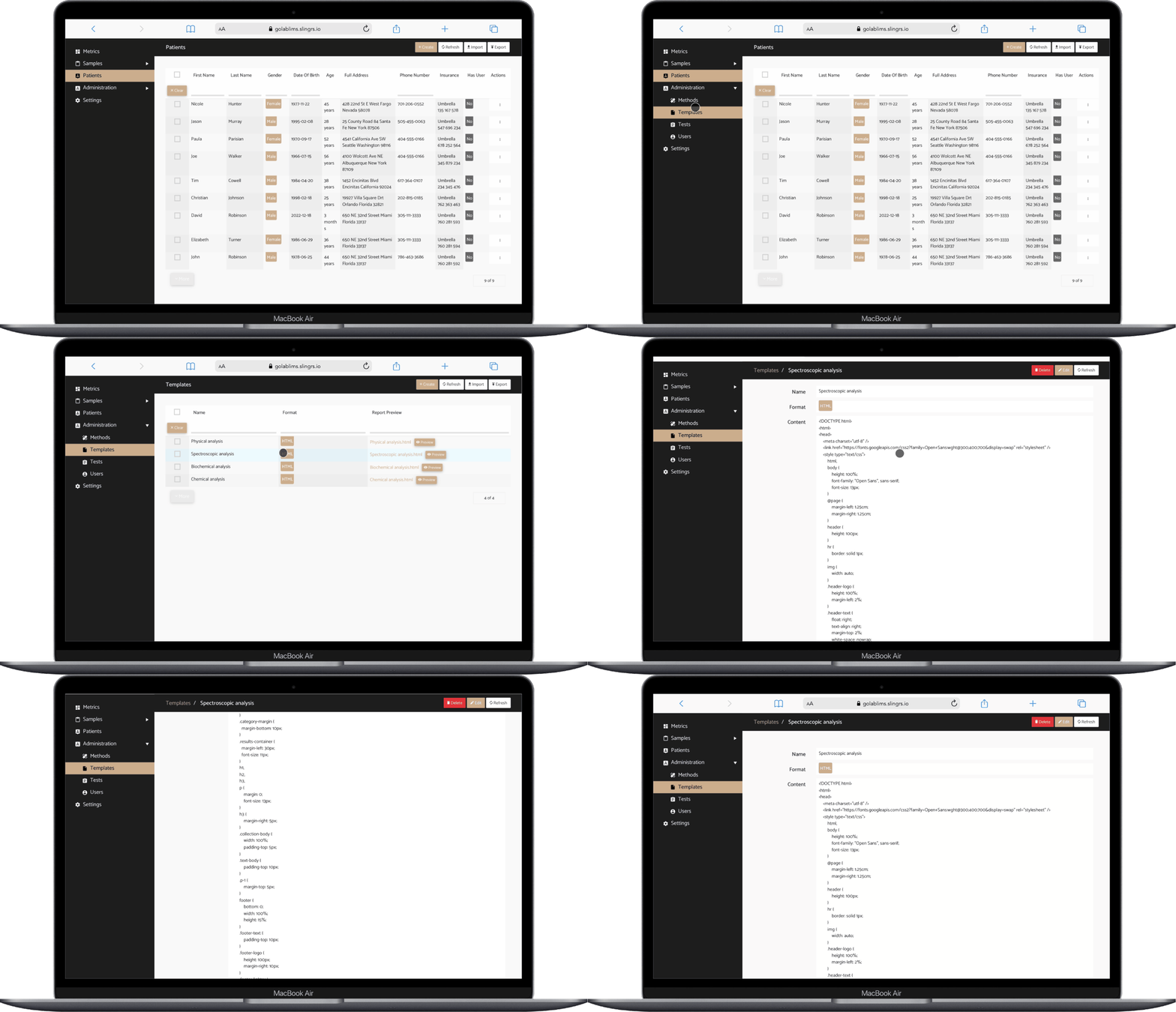
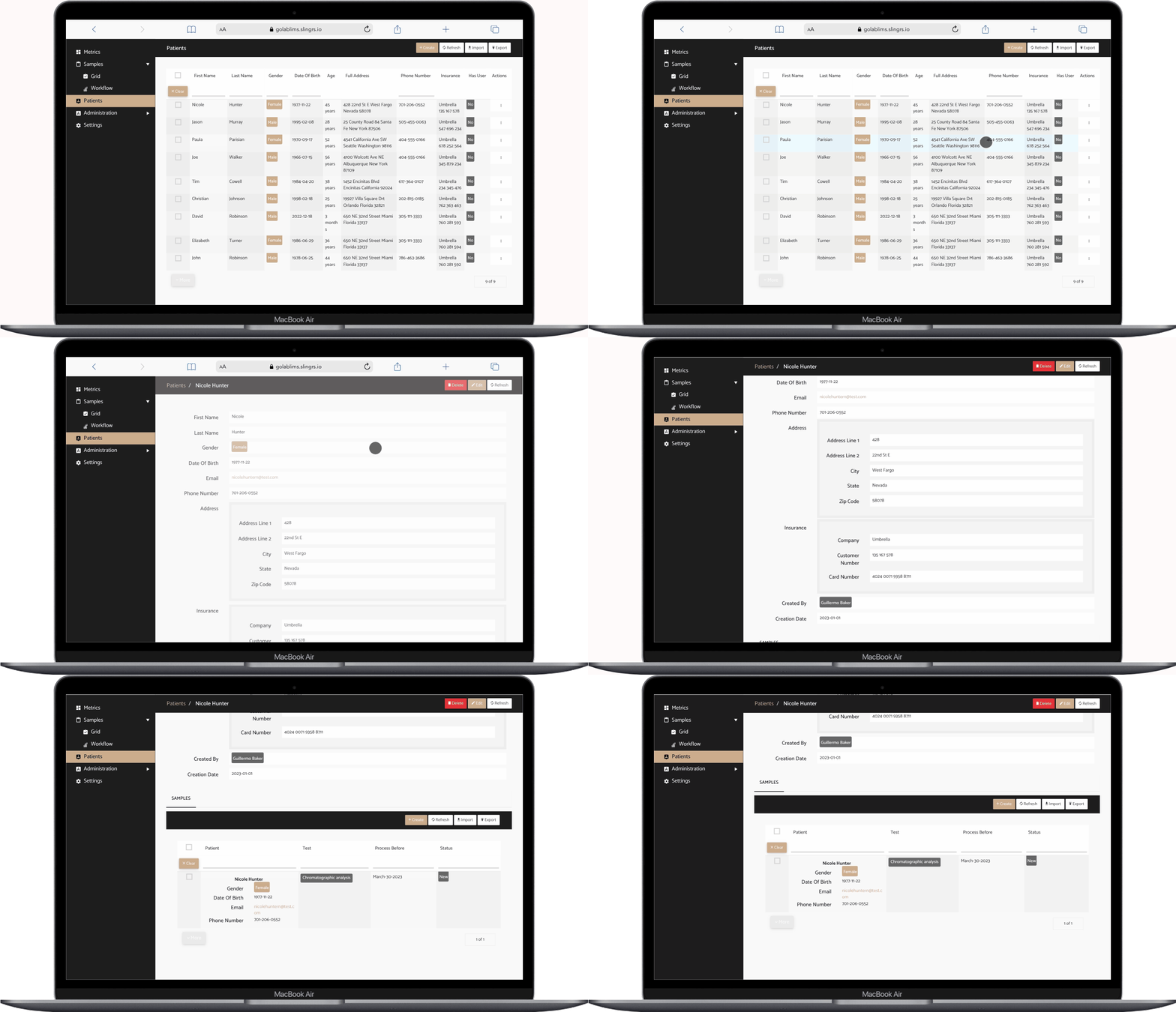
A patient record stores basic patient information such as name, surname, email, address, phone number, and more. This information is used to automatically generate reports by the platform and notify the patient when the sample is created and when the results are ready.
User Management
This feature is only available to admins and allows them to manage the platform’s users.
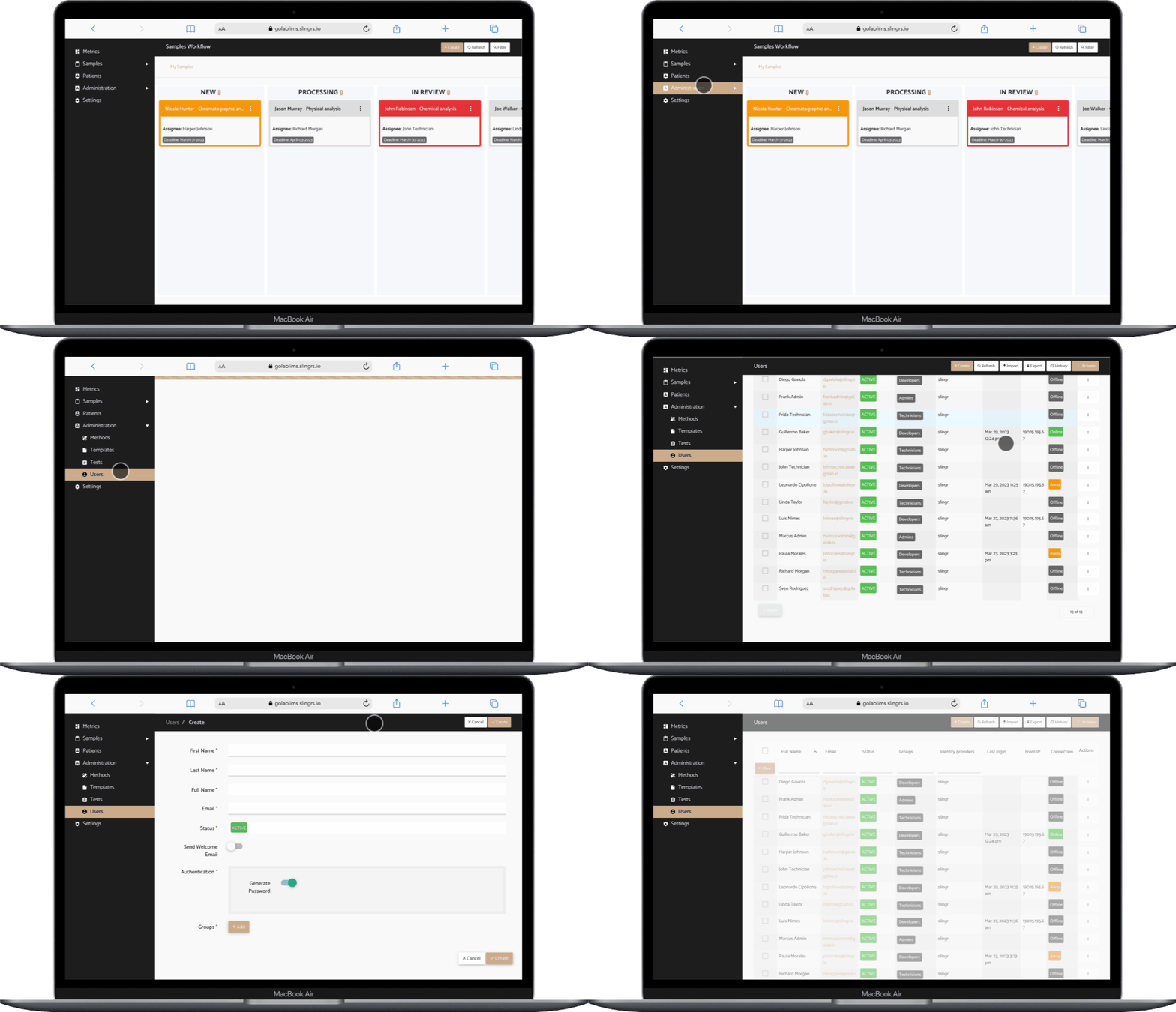
- With this feature, admins can create and edit users, specify their group, and manage the password and status of each user.
- The user form has the following fields: First Name, Last Name, Full Name, Email, Status, and Groups.
- User status can be active or inactive. Inactive users won’t be able to log in to the platform.
- The user groups can be: Admin, Technician, or User.
- The user’s password can be changed by the admin or the user themselves.
Samples Management
Samples are a crucial component of the application. This feature involves tracking and managing samples from the point of collection to their final destination. This includes sample registration, tracking, analysis, storage, retrieval, and disposal. The main goals of sample management are to ensure accurate data collection and provide reliable information on the status of each sample throughout its life cycle.
It is important that all processes related to the handling of samples are documented so that they can be tracked in case any issues arise or if something goes wrong with a particular sample. Additionally, it is important to have proper security measures in place so that unauthorized access is prevented.
In the application, samples can be registered and managed from two sample views: the Grid View and the Workflow View.
Samples Grid View
The sample grid view is a simple view for samples, where the user can see the status of the samples and perform general actions like create, edit, or delete.
- The view includes patient, status, test, assignee, and process before columns.
- The status of the samples will be highlighted with different colors to make it easier to identify each of them.
Samples Workflow View
The workflow view is a powerful visual representation of a sample workflow, allowing users to easily track the status of their samples and manage the testing process.
In this view, you can change the status of a sample simply by dragging and dropping the record card to the desired status column, or by clicking on the sample and selecting the action that needs to be executed from a drop-down menu.
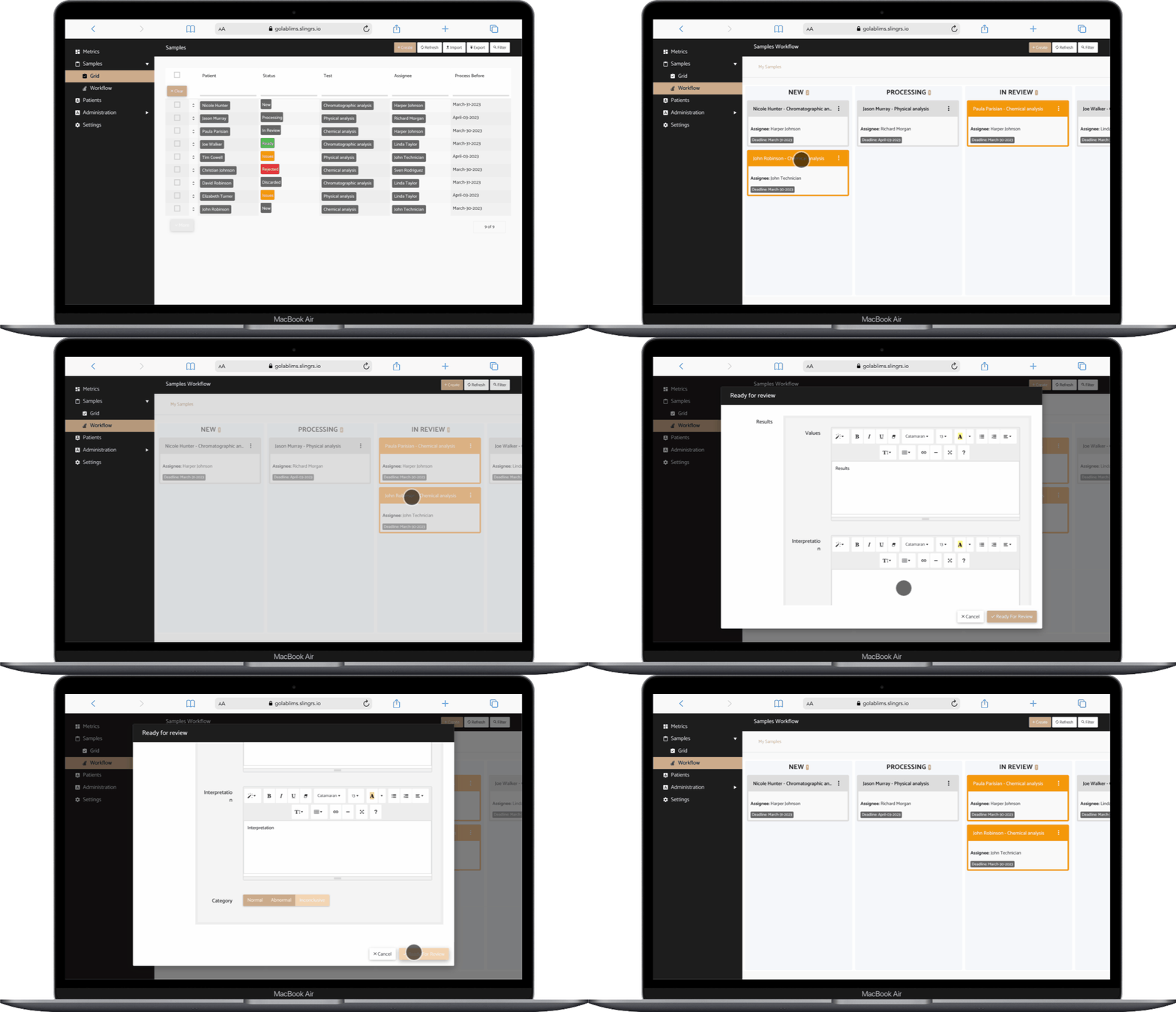
The samples workflow view includes transitions to follow the path:
"New" → "Processing" → "In Review" → "Ready"
When a sample is created, the status will be “New”. Users can change its status to “Processing” by executing the action “Start process” where the tests are performed. Afterward, it will transition to “In Review” status, where the test results will be filled in and checked to ensure everything is in order. If the results are satisfactory, the sample will move to the “Ready” status, and an automated report will be generated with the patient data, test data, and results.
It is important to note that there is an action called “Regenerate report” available for the user when the sample is ready to recalculate the report automatically generated during the “Ready” action.
More actions

Samples cannot go back to “New” once the sample has been processed or to “Processing” once the sample has been reviewed.
After the sample reaches the “Ready” status, the workflow ends. From this point, the user can only perform the action “Regenerate report” or send the sample back to the “New” status in case of a mistake.
Only before reaching the “Ready” status, the user can perform the actions “Inform Issues”, “Discarded”, or “Rejected”. These actions ask the user to add a note about the reason for discarding/rejecting the sample or the issues found in it.
"Processing" → "With Issues" or "In Review" → "Rejected"
Each sample card will also have a color to warn the user through different stages of the process. A grey color indicates that the sample is far from its final “Complete Before Date”; this date represents a commitment date for the laboratory to have the results of the sample. Orange indicates that the sample will need to be processed and reviewed within three days, and red indicates that the process needs to finish within one day.
Report generator
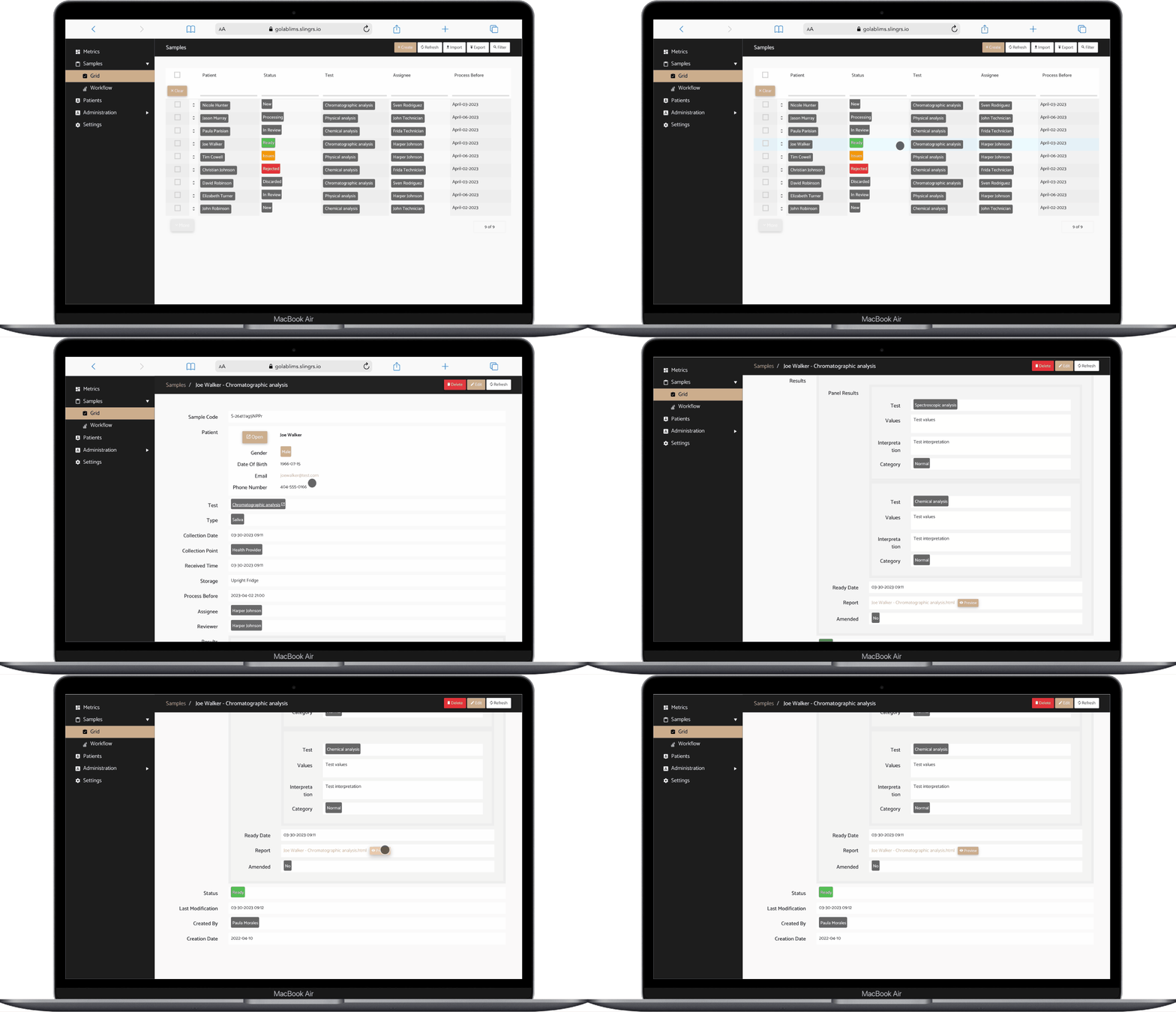
After setting the status to “Ready,” an automated report will be generated with patient data, test data, and results. This report is stored on the sample and can be downloaded by clicking on it. Patients can access this document through the “Customer accessioning” feature available for them in the mobile app developed for this LIMS solution.
Settings panel
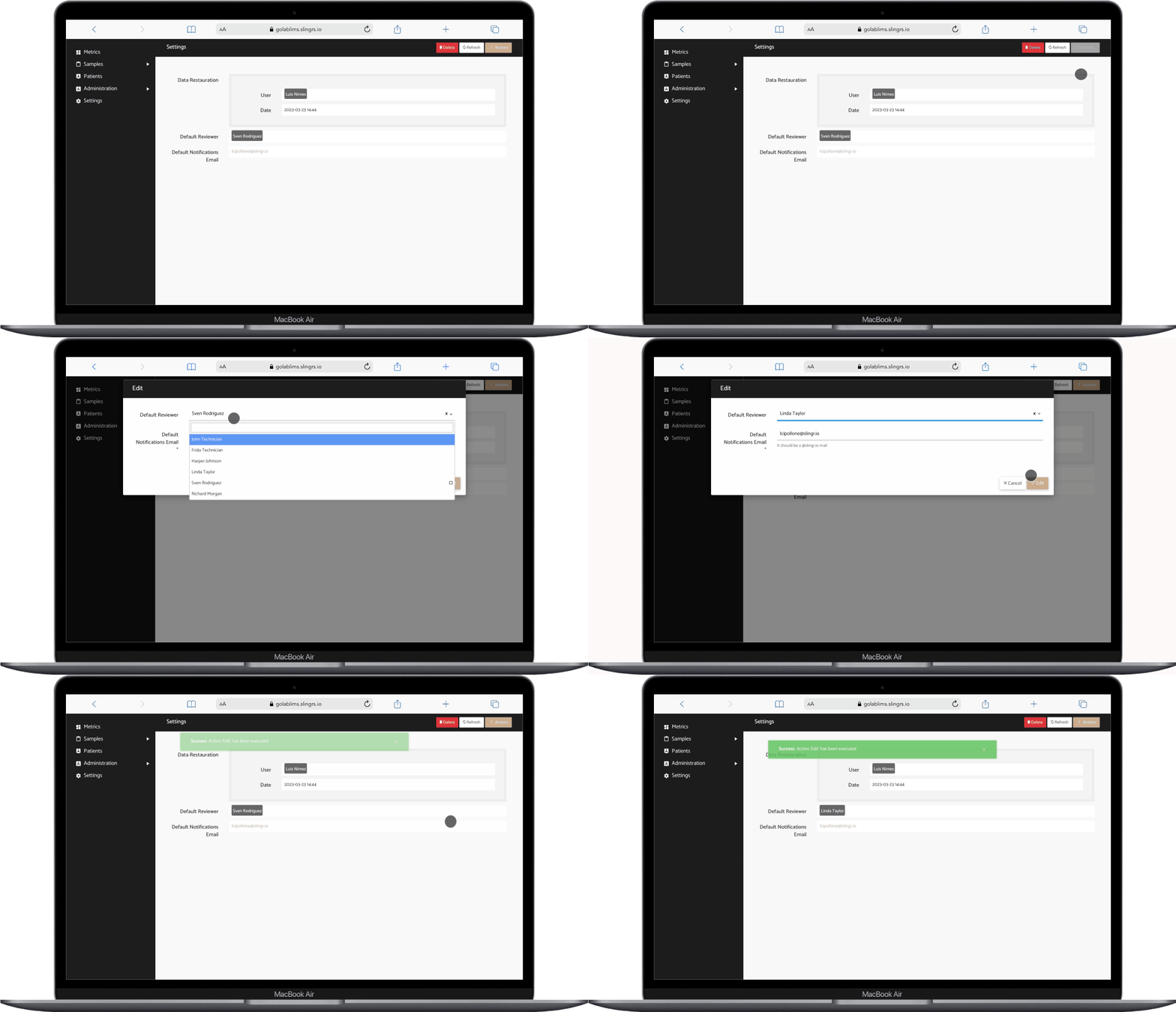
The settings record allows users to configure default information such as a default reviewer for the samples or default e-mail receptionist. As this is kind of a “Demo” application and we need to have accurate data to show every time we need the app working properly, there is an action that performs over settings and restores all default platform values. This action is called Restore Data.
If the administrator decides that they need to add new settings to meet the needs of their organization, they can do so by contacting the developers of Slingr.
Notifications

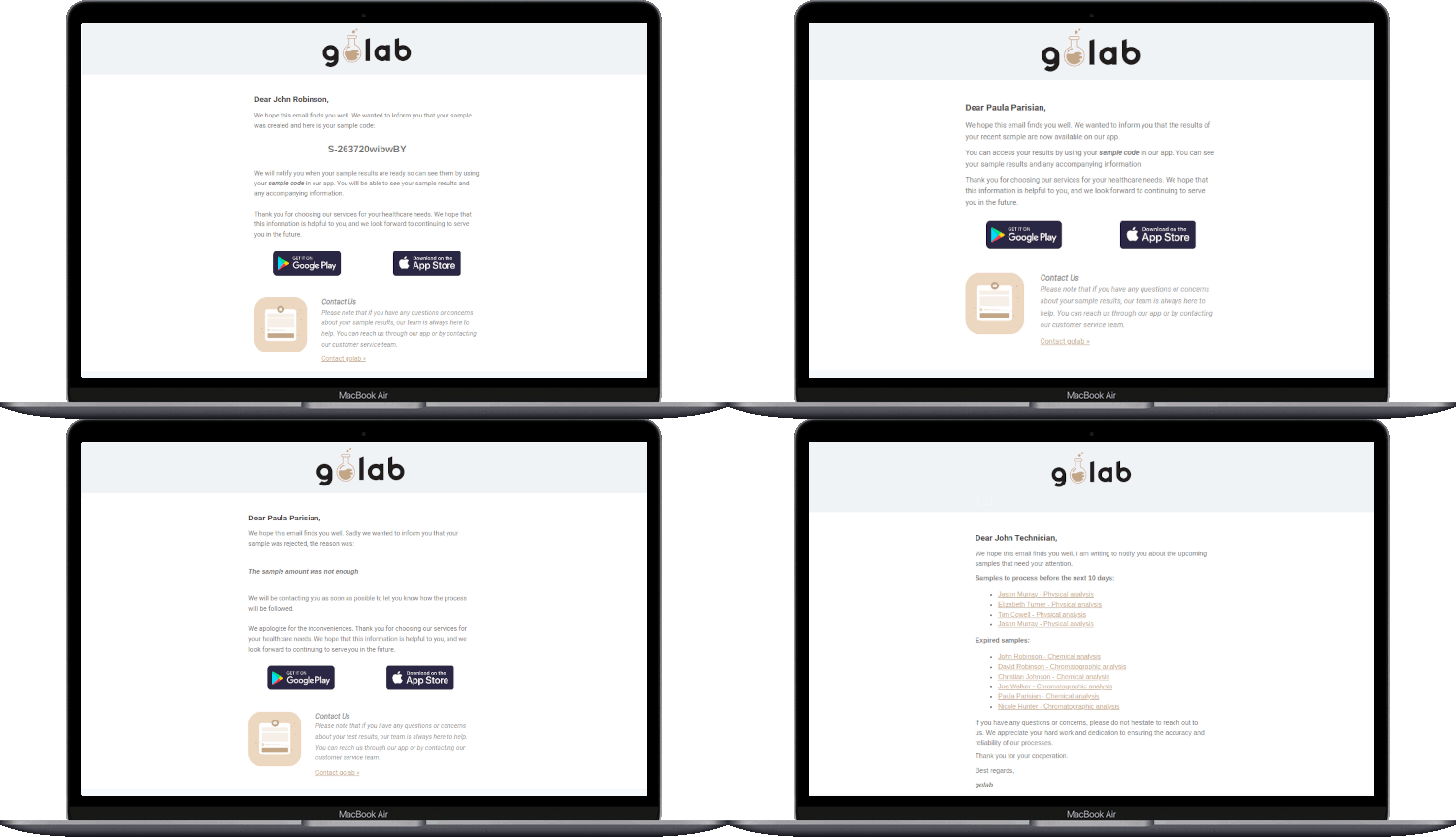
The application integrates the service of Mailchimp (an email marketing platform for designing, sending, and tracking email campaigns) to keep our patients and technicians informed about the status of their samples. We send automated email notifications to patients when:
- Samples have been created: Includes the sample code so patients can follow their sample on our app.
- Samples results are ready: Includes a link to our Android and IOS app.
- Samples have been rejected for any reason: Includes the reason why their sample has been rejected.
We also send notifications to our lab technicians when:
- Samples are about to expire: Includes the sample’s link to our platform.
- Samples have expired: Includes the sample’s link to our platform.
This helps reduce the risk of inaccurate or unreliable test results. It also helps to keep our patients informed of any issues or delays that may arise during the testing process and reduces the amount of time they spend waiting for their results.
Metrics dashboard
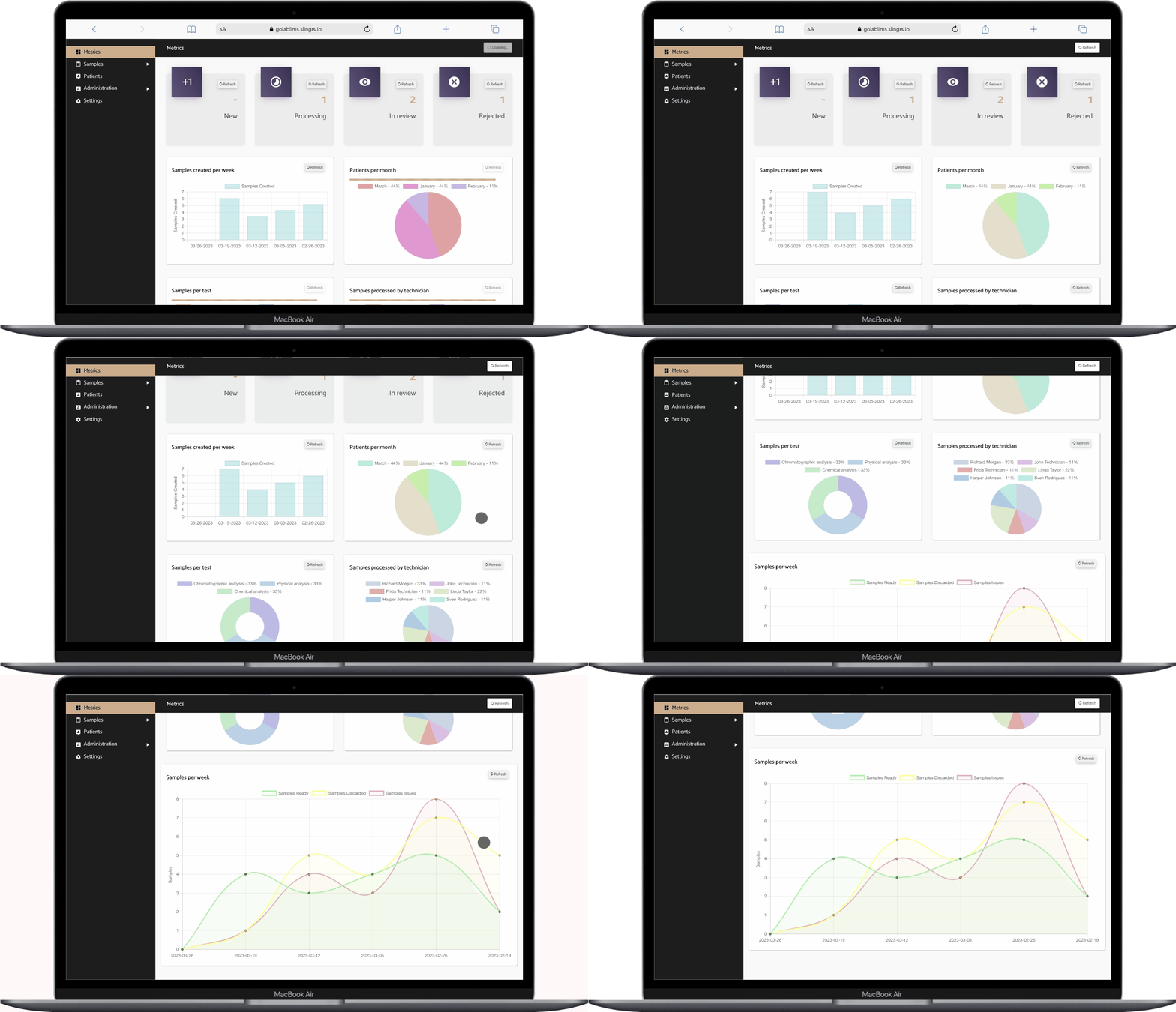
This feature allows administrators to track general laboratory information in a simple and visible way. The metrics dashboard includes the following charts:
- Samples per status indicators: the amount of samples on each (new, processing in review, rejected) status. This chart helps laboratory managers track the status of samples in real-time, identify bottlenecks or delays in the workflow, and allocate resources effectively to improve turnaround times and overall efficiency.
- Samples created per week: the amount of samples historically created each week shown on a bars chart. This chart helps laboratory managers monitor sample volume, identify trends in sample types and sources, and optimize sample processing workflows to ensure efficient use of laboratory resources.
- Patients registered per month: the patients created each month on a pie chart. This chart can help laboratory managers track trends in patient volume over time and allocate resources accordingly to manage workload and capacity.
- Samples processed per test: the distribution of the number of samples processed for each type of test performed in the laboratory.
- Samples processed by technician: pie chart to show the number of samples processed by each individual technician, helping to identify workload imbalances and optimize resource allocation in the laboratory.
- Samples per week: it displays the number of samples that were ready for testing, discarded, or encountered issues during a given week. This chart helps laboratory managers monitor and improve the efficiency of sample processing workflows and identify potential quality issues.